How to Capture and Map Customer VAT Numbers into Xero Invoices
Why Capture Customer VAT Numbers?
1. Enabling "Reverse Charge" (B2B Sales)
- What it means: You do not charge VAT on the invoice, and the responsibility for reporting the VAT moves to the buyer.
- Why it matters: This simplifies the process for cross-border sales and reduces your administrative burden of remitting VAT to foreign tax authorities.
2. Validating Business Status & Compliance
- Avoiding Wrongful Tax Exemption: If a customer claims they are a business but cannot provide a valid VAT number, you may be required to charge them VAT, even if they are in another country.
- Documenting for Tax Audits: Tax authorities (like HMRC or EU tax authorities) require proof that you correctly applied zero-rated VAT to B2B transactions. A valid, verified customer VAT number is primary evidence.
- Preventing Fraud: Verifying the number via official systems (like VIES or HMRC) prevents you from being involved in fraudulent activities where illegitimate entities try to avoid taxes.
3. Proper Invoicing (Legal Requirement)
- Mandatory Inclusion: For B2B transactions, it is a legal requirement to include the customer's VAT number on the invoice.
- Accuracy: It ensures that your invoices are accurate and that you are not under- or over-collecting tax.
4. Preventing Out-of-Pocket Costs
- Avoiding Fines: If you fail to charge VAT because a customer claimed to be registered, but you did not verify their VAT number, you may be held liable by tax authorities for the unpaid VAT, plus penalties and interest.
- Accuracy in Invoicing: Without a validated number, you might mistakenly treat a B2B sale as B2C, leading to inaccurate tax reporting.
Summary Table: Why Capture VAT Numbers?
| Reason | Impact |
|---|---|
| Reverse Charge | Shifts VAT liability to the buyer, simplifying your admin. |
| Audit Trail | Provides necessary proof to authorities for zero-rated sales. |
| Compliance | Ensures you are adhering to tax laws, avoiding fines. |
| Validation | Confirms the buyer is a legitimate business. |
WooCommerce VAT Plugins
There are a clutch of VAT plugins for capturing and verifying VAT numbers for use in WooCommerce. These will usually verfify the numbers in the standard public databases.
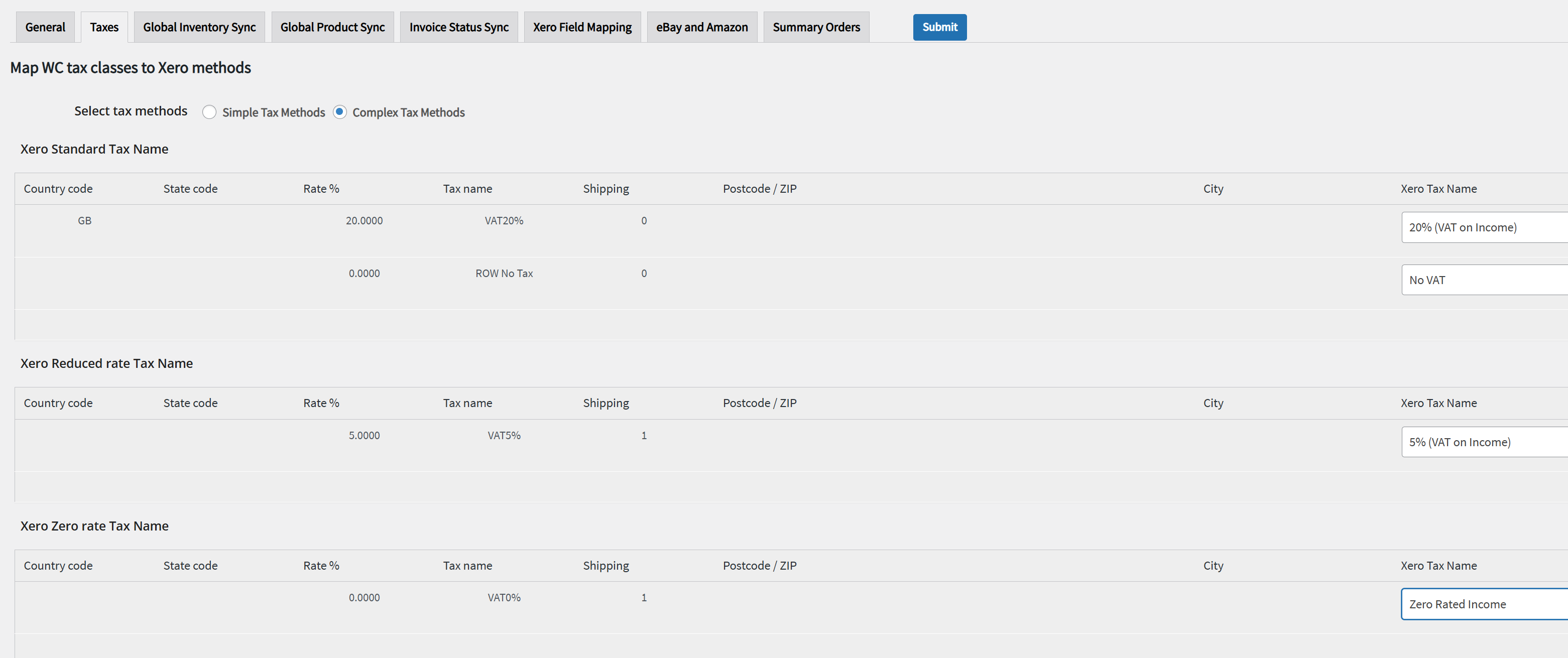
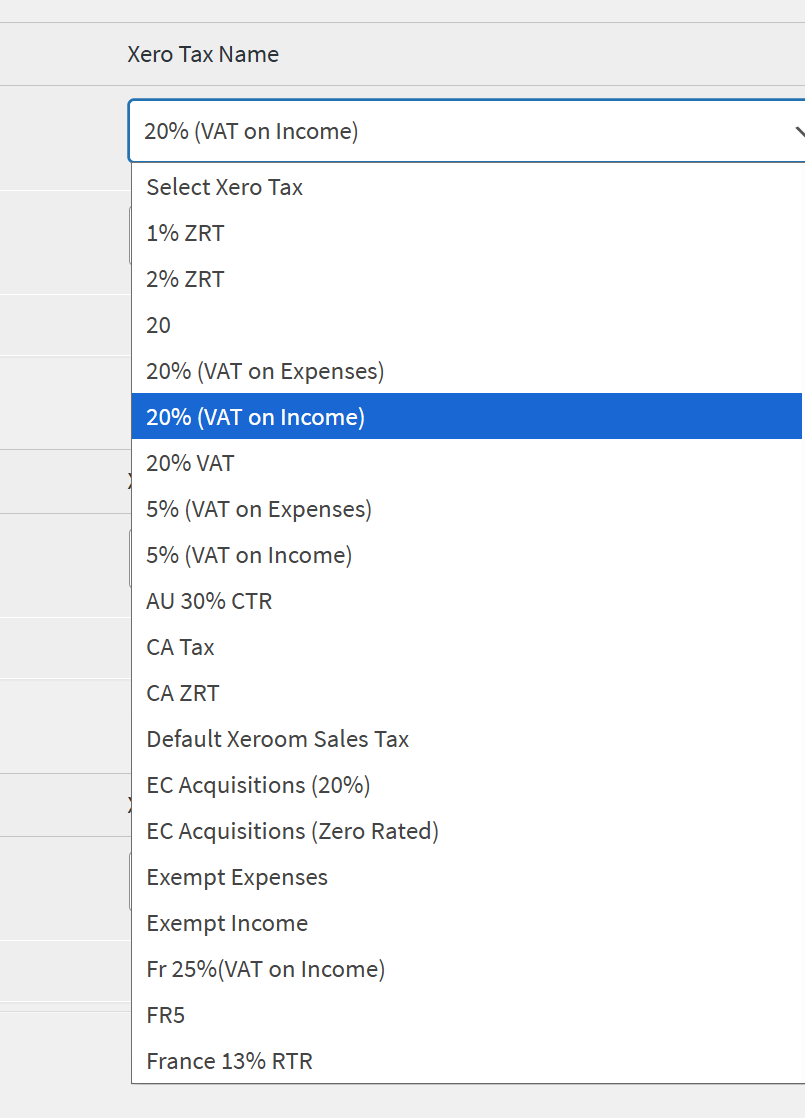
How to Map the WooCommerce Taxes to Xero
How to Map the Customer VAT Number to Xero
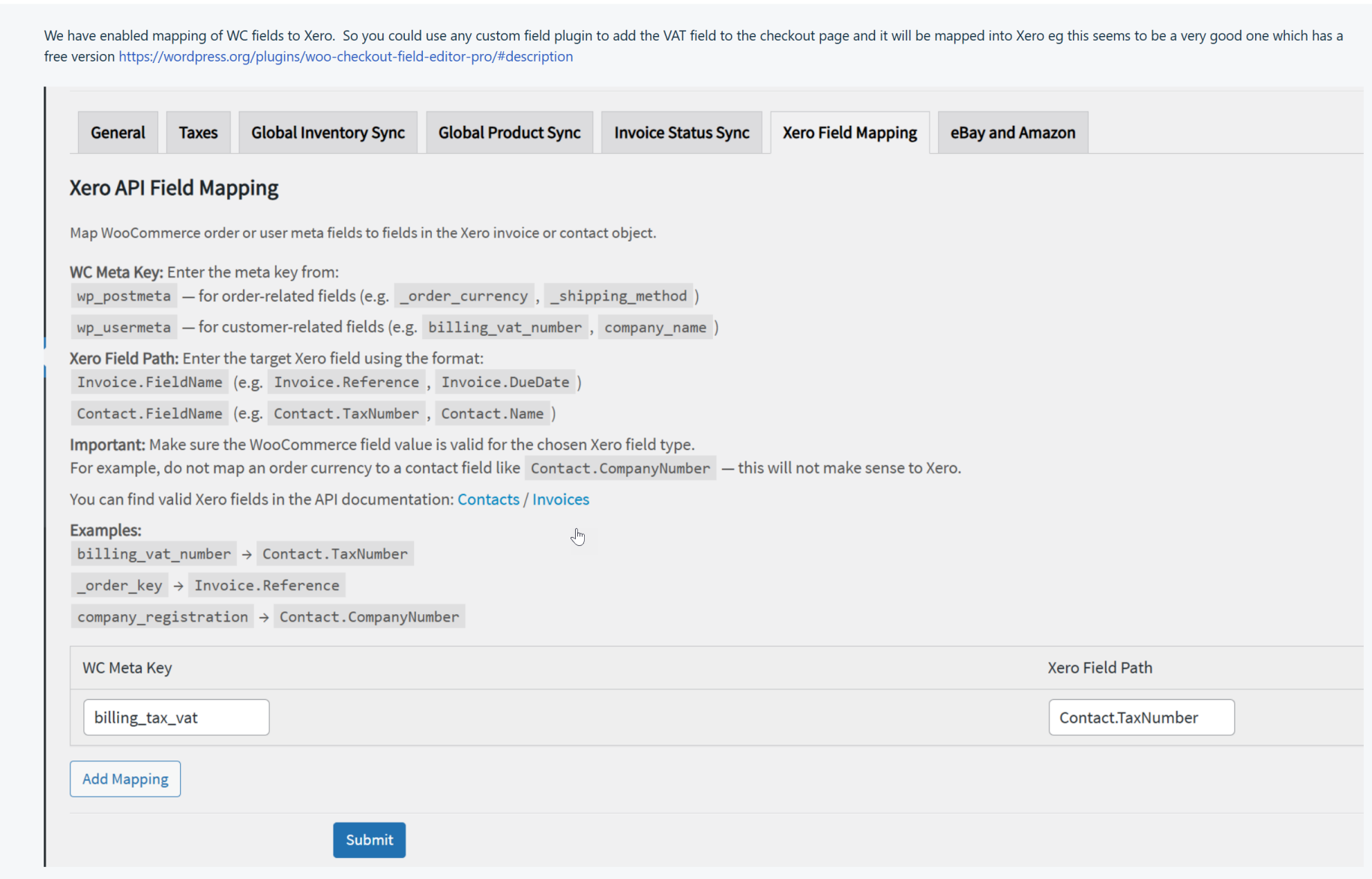
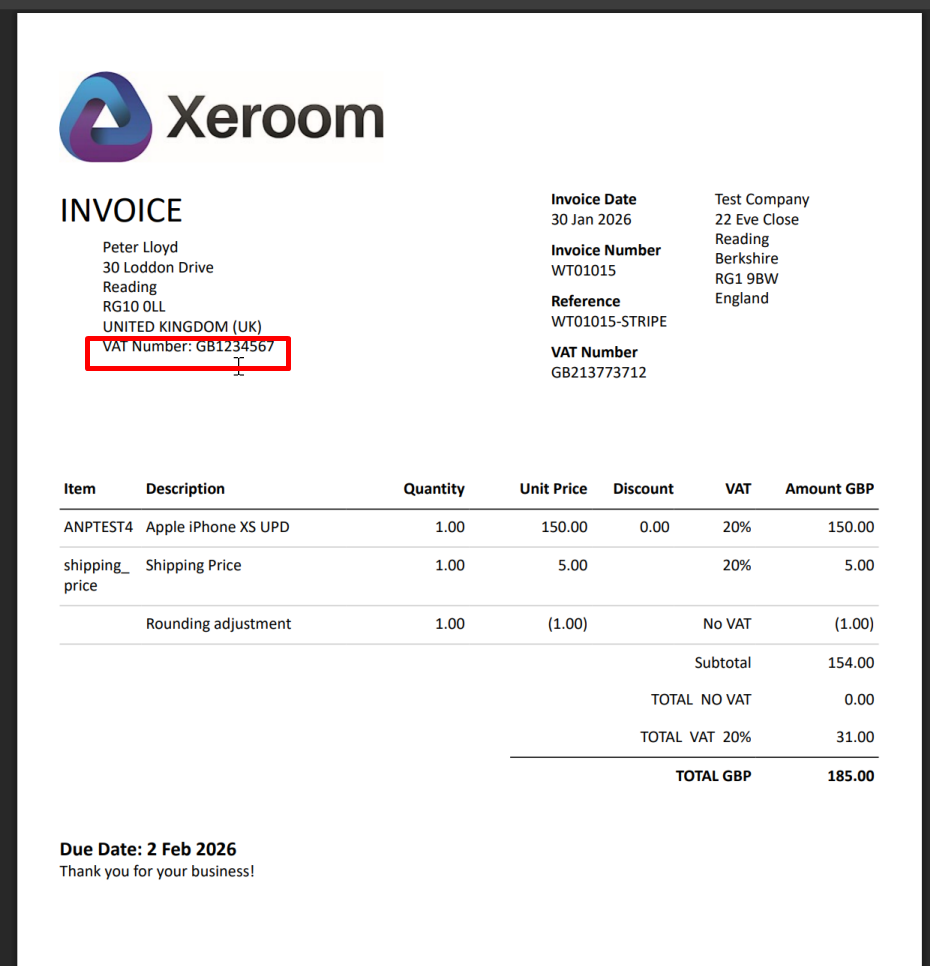
Xeroom provides a Field Mapping Tool where the mapping can be made under the WC Meta Key. Once done run a test to ensure the data is flowing into the Xero contact correctly and that it shows on a test invoice (note the invoice templates don't show this until it is in a pdf view).
Capturing Customer VAT Number with any Field Editor Plugin
You can also very easily use any generic field plugin to create an extra field on the checkout to capture information where verification is not needed. eg Checkout Field Editor for WooCommerce Checkout.
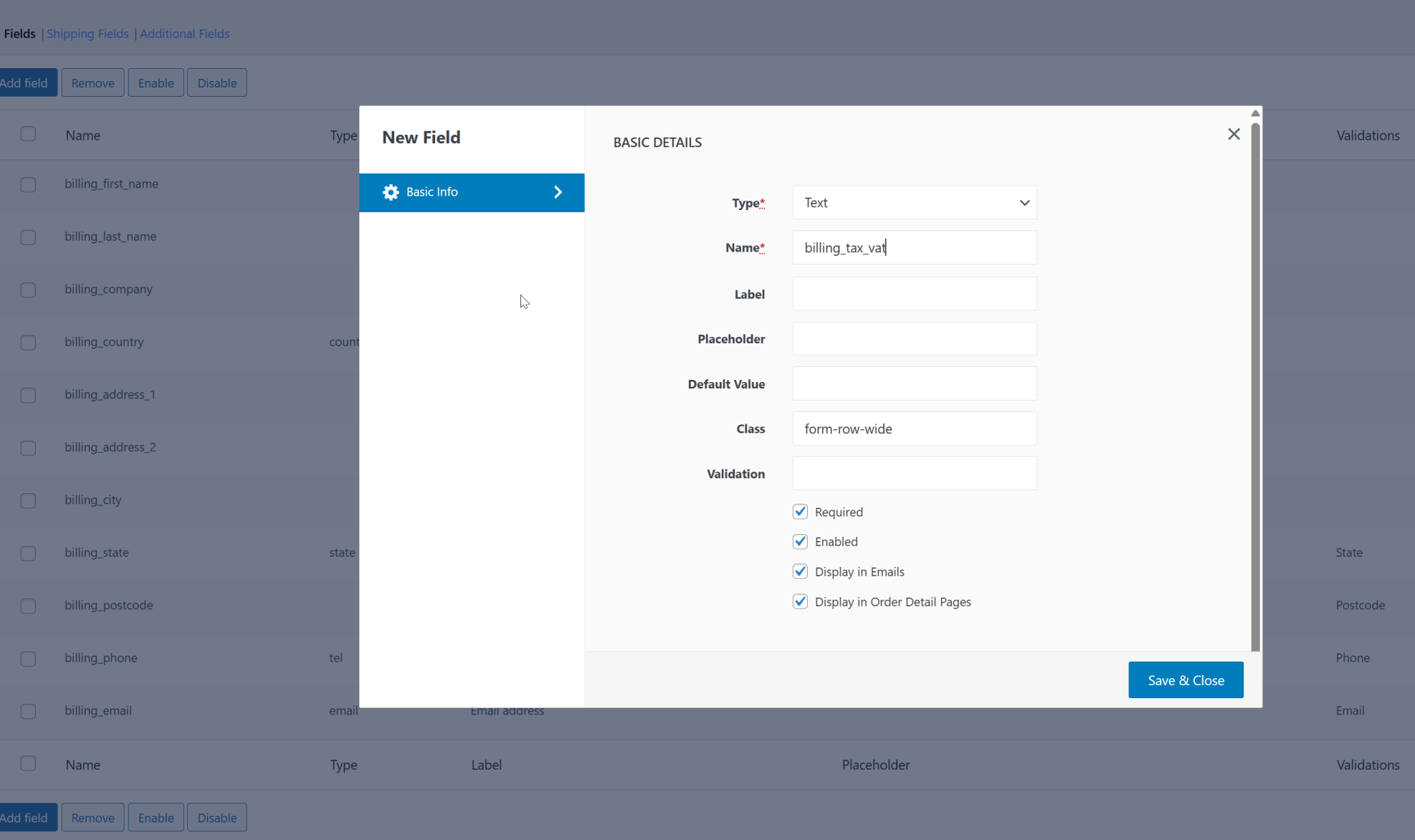
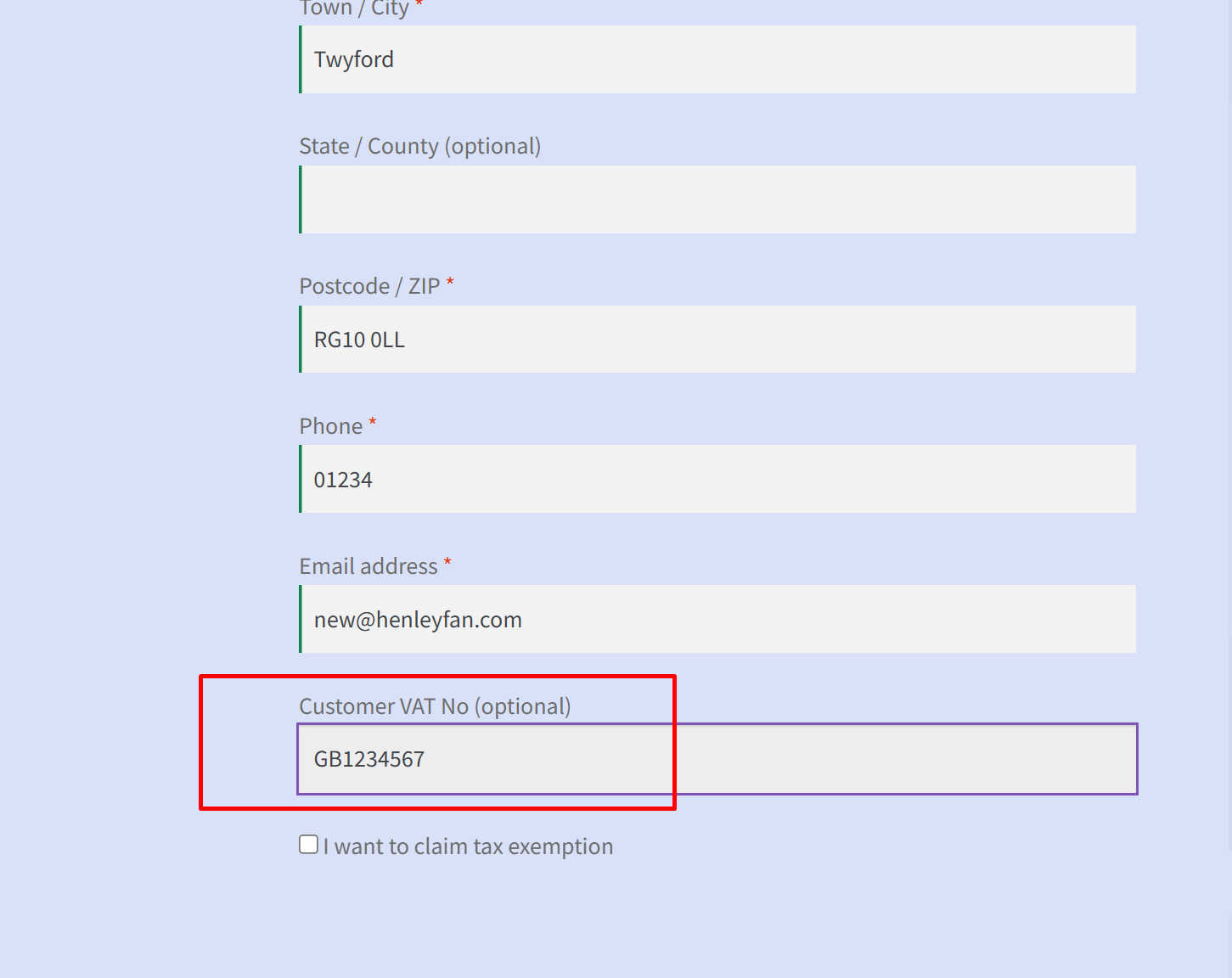
This field then appears at checkout as below and in this example saves the customer VAT number to the billing_tax_vat field which is then mapped in Xeroom in the tab as shown above. ie billing_tax_vat from WooCommerce maps to the Contact.TaxNumber field in Xero.
This then appears on the invoices in Xero.
Handling Tax/VAT Exemption
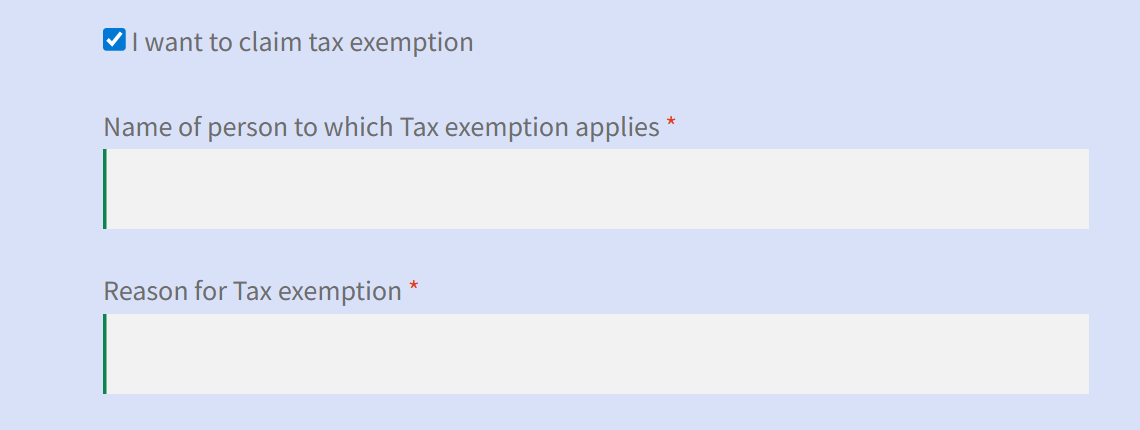
There are cases where the customer qualifies for VAT or tax exemption eg disabled purchasers or construction materials for new properties. The Tax Exemption for WooCommerce plugin works well for this - it adds a tickbox at the checkout and asks for information that can be checked manually and/or set against the user.
Was this article helpful?
That’s Great!
Thank you for your feedback
Sorry! We couldn't be helpful
Thank you for your feedback
Feedback sent
We appreciate your effort and will try to fix the article